How to Connect Your Microsoft Account in SyncYourCalendar
Syncing your Microsoft account with SyncYourCalendar allows you to merge calendars, avoid double bookings, and keep all your events aligned across platforms. The setup is simple, but there are key differences between personal and organizational accounts that you should know.
1. Connect the account
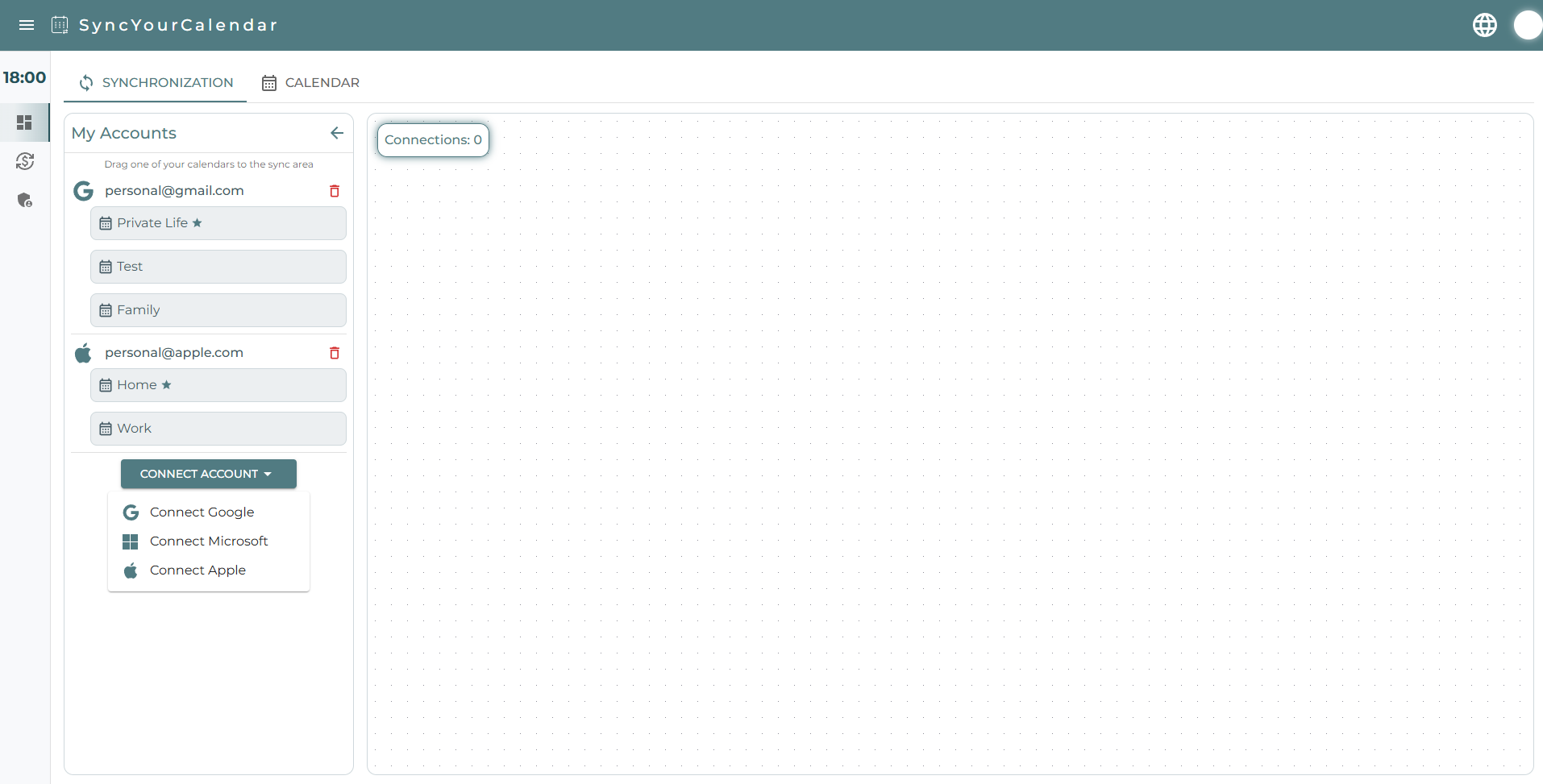
Inside SyncYourCalendar, go to Dashboard → Synchronization → Connect Account and select Microsoft Account. You’ll be redirected to the secure Microsoft login page.
2. Choose the Correct Microsoft Account Type
Microsoft provides different account types, and the connection flow depends on which one you use: ● Personal Microsoft accounts (@outlook.com, @live.com, @hotmail.com) ● Work or School (Microsoft Entra ID) accounts
3. Personal Accounts
Personal accounts usually connect without any restrictions. Just log in → accept the requested permissions → SyncYourCalendar connects instantly.
4. Work/School Organizational Accounts
This is where most connection issues appear, and it’s not caused by SyncYourCalendar. Many companies restrict third-party apps from accessing Microsoft data. If you see messages like: ● “Admin approval required” ● “Need admin consent” ● “This app is blocked by your organization” Your organization is preventing the connection due to its security policies. To use SyncYourCalendar, your IT administrator must grant permission for the app to access your calendar and profile information.
5. How Admins Can Approve SyncYourCalendar
There are two ways for an admin to grant access: A. Admin Consent Workflow If your organization has the workflow enabled, you can send an automated request to your IT admin directly from Microsoft’s screen. The admin receives the request and approves it. B. Admin Grants Consent Manually Admins can pre-approve SyncYourCalendar inside the Microsoft Entra Portal so that every user can connect without errors.
6. After Approval
Once the administrator completes the consent process, return to SyncYourCalendar → Dashboard → Connect Microsoft, and the connection will finalize normally.

Helpful Documentation for IT Administrators
If your organization uses strict permissions, send these official Microsoft links to your admin.
They explain how to configure or grant the required consent:
Admin consent workflow:
https://learn.microsoft.com/en-us/entra/identity/enterprise-apps/configure-admin-consent-workflow
Granting admin consent manually:
https://learn.microsoft.com/en-us/entra/identity/enterprise-apps/grant-admin-consent?pivots=portal